ESR Access Troubleshooting
Trouble Shooting Tips for ESR access and Resetting your ESR user account
Logging in by Username (External Learners and staff who login without a smartcard)
1) ESR Usernames for ESNEFT start with 432 (there are some Ipswich staff who have an old 178 login but all new External Learners and staff should have 432)
2) The last 2 digits of the ESR Username are numeric
3) If when inputting your ESR Username and password the following message appears, this means the incorrect Username and/or password has been input. Please retry inputting the details again but please note that too many attempts of inputting the incorrect details will lock your account. If on the second attempt the same message appears contact the ESR Team for a password reset.

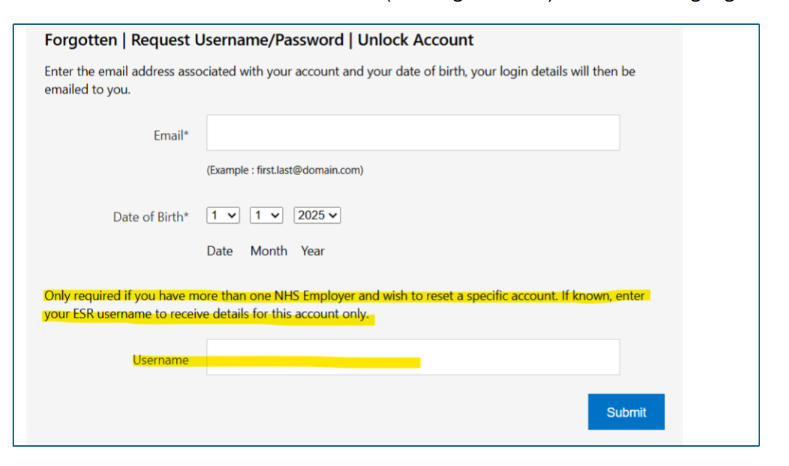
4) For Externals Learners who also have a separate ESR Login for another Organisation i.e. NHS Professional staff – when undertaking a forgotten password/username, please input the ESR username with ESNEFT (starting with 432) into the box highlighted.
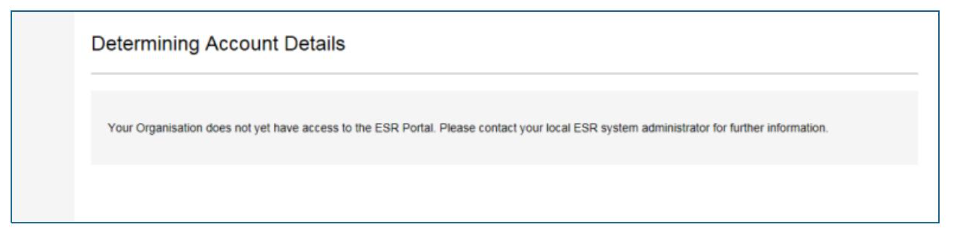
5) If the following error message appears when trying to reset the password, this will mean that the information entered does not match the information held on your ESR record (Date of Birth or email address) so please try inputting the information again. If you continue to get the same error message, a member of the OLM team can check what details are recorded for you (external learners) and update ESR accordingly, if there is no obvious error with the information held please ask the ESR Team to send you a password reset. (Epic Trainers – if requesting this in the Escalation chat, please provide the correct email address along with the ESR Username).

6) Password reset emails can take up to 10 to 15 minutes to arrive. If not received please also check your junk/spam folder.
7) Password reset email links are only valid for 4 hours. If the link has expired please complete the Forgotten password/username again.
8) When trying to reset your password – please follow the guidance below
Passwords must be 12 characters or more in length
Passwords must contain at least one letter and one number
Passwords may not be the same as previous four passwords
Passwords may not contain repeating characters or sequential characters or numbers (such as 'ABCD' or '1234')
Certain words and terms are not permitted within passwords. Avoid using words associated with the system, your roles, or location
9) For staff who have recently returned to the Organisation following a break, they will usually be provided with a new ESR Username. However, please note if they have left the Organisation within the last 90 days, they will continue to have access to the previous ESR account to enable them to access the ESR Leavers Portal (therefore they will have 2 ESR logins for a temporary period). In this scenario when using the Forgotten password link to obtain the new ESR Login – please ensure the new ESR Login Username is input in the space highlighted. If previous login was with a smartcard, the ESR Team may need to re-link this again. If new ESR Username is not known, please contact the ESR Team.

10) When a new External Learner or Employee record is created in ESR, the ESR Username is not available until the following working day.
1) If you usually use your smartcard to access ESR, please use your smartcard as usual to login to access the training. The ESR Team will be unable to reset your password.
2) Please input your smartcard into your device and enter the passcode/pin prior to opening up the ESR Login page.
3) If you receive a message to advise your smartcard password has expired or is locked – you will need to contact IT directly to resolve this.
4) At the ESR login screen – please click the Login with my Care Identity button.
5) If the Login with your Care Identity button isn’t showing on the ESR login screen, please ensure you are fully connected to the Trust Network especially if you are working from home. A restart of your device may also be required to ensure your device is fully up to date with all recent updates.
6) If the following message appears on your device, this means your smartcard is not currently linked to ESR. Please either try following the instructions to login with Username or contact the ESR Team with your smartcard number and request for this to be linked.
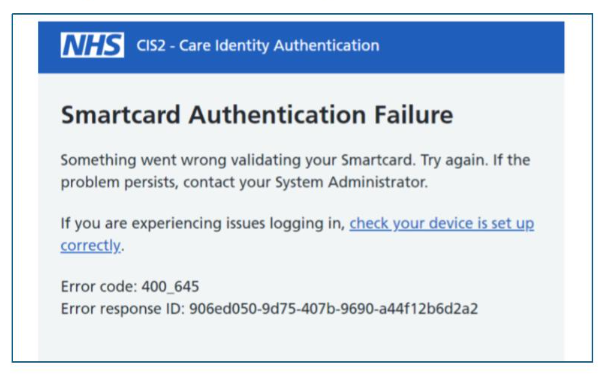
7) If when trying to log onto ESR with a smartcard the following error message appears, please check the following on the device:
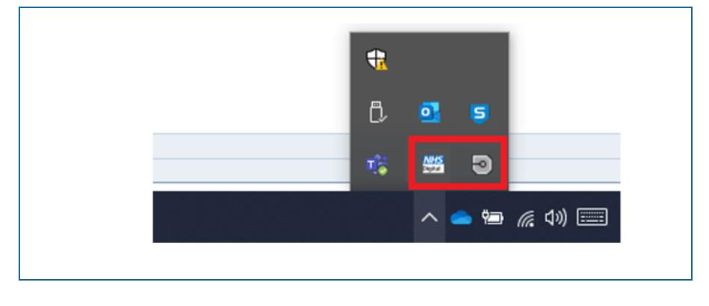
Please check that both the NHS Credential Management and the HSCIC Identity Agent are running (please click the little upwards arrow at the bottom right-hand corner of your screen). If these are not showing on the device, please try a restart.
Then please clear the CACHE on the device -
Launch Microsoft Edge browser on your computer.
Click the "Settings and more" (three dots) button in the top right corner of the browser window.
Click on "Settings" (toggle button) and then select "Privacy, search, and services" from the left-hand menu.
Under the "Clear browsing data" section, click on "Choose what to clear".
To clear the cache, ensure "Cached images and files" is selected.
Select the time range for which you want to clear the data (e.g., Last hour, Last 24 hours, All time).
Click the "Clear now" button to remove the selected data.
Then please try logging onto ESR with your smartcard again. If you are still unable to log into ESR – please liaise with IT to see if they can check your device settings, or see if another device is available to use.